Convert Your Digital Camera's QuickTime Movies to WMV
Digital cameras take photos with amazing clarity and many can record high-quality video. While most digital cameras record in QuickTime format (MOV), some record in MPEG 4 (MP4). This causes compatibility issues because QuickTime videos do not play natively on a Windows PC. You need to install the QuickTime Player to play MOV file on Windows PC. If you want to share your QuickTime movies with your friends and family then convert your MOV files to a standard Windows format with Digital Media Converter Pro. For instance, if you intend to share your video via e-mail or the web, the small, yet high-quality Windows Media Format (WMV) is your best choice. It plays in Windows Media Player, which comes standard on all Windows PCs. The videos in this format can easily be edited with video editing software like Auto Movie Creator.
Converting Your QuickTime Files
Once you've transferred your MOV video files from your camera to your PC then you are ready to use Digital Media Converter Pro. Add the video files to the conversion list by clicking File >> Add Files. The next step is to choose output format as either AVI or WMV from the Formats Menu. Select AVI if you intend to edit the video and WMV for easy distribution of your media.
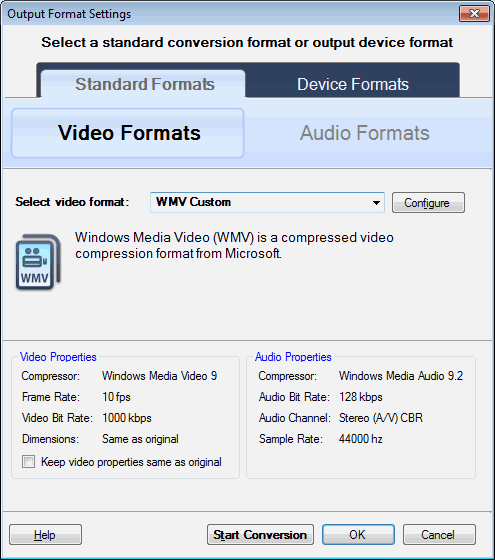
The program's default settings are carefully designed to create audio and video files that are both high in quality and small in size. The quality of the converted files has a lot to do with the source files.
Once you have specified the output file format, start the conversion. In a few minutes you will have the converted files in your output folder that can natively play on your PC and can be easily e-mailed. It is that easy to convert your QuickTime video files with Digital Media Converter Pro!