Digital Media Converter is the most stable and comprehensive multi-format video converter available. Now, you can effectively organize and convert your media files into AVI, 3GP, QuickTime MOV, FLV, DV-AVI, MPEG-1, MPEG-2 (NTSC, PAL), WMV, WAV, MP3, Ogg Vorbis (OGG) and WMA file formats. Its easy-to-use graphical interface allows you to effortlessly convert video files for FREE!
You can transform your video or audio files into a special streaming format to play on a web site. Convert thousands of files using the program's "Batch Conversion" feature by selecting a group of files or entire folders and convert them all in one run.
You don't need to be a professional to use Digital Media Converter. A simple 3-step process makes it easy - select the files to convert, the format to convert into, and start the conversion! The program can be set to automatically shut down the computer when the conversion is completed.
Your audio and video will stay synchronized while converting. Digital Media Converter allows you to de-interlace all 'interlaced videos' for maximum sharpness and quality.
Digital Media Converter will determine whether an extra codec is required and helps to find and install it. The program's default settings are carefully designed to create audio and video files that are both high in quality and small in size.
It is 100% safe! So what are you waiting for? Download Now!
Features at a Glance:
Extensive Media Format Support
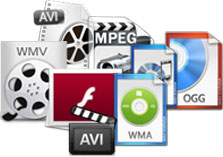
- Supports almost all popular media input formats including AVI, FLV, MOV, MPEG-1, MPEG-2, DVR-MS, MPEG-4, VOB, 3GP, 3GP2, DivX, MP3, ASF, M4A, Ogg Vorbis (OGG),WAV and much more.
- Convert to AVI, 3GP, QuickTime MOV, FLV, DV-AVI, MPEG-1, MPEG-2 (NTSC, PAL), WMV, WAV, MP3, Ogg Vorbis (OGG), and WMA
- Convert DVD video between PAL and NTSC standards
- Convert DVR-MS files created by Windows Media Center
|
 |
 |
Preset Audio and Video Settings
- Optimized video parameter settings
- Auto selects correct video and audio properties (bit rate, frame rate) to produce the very best output quality
- Retain tags like author, title, artist, and album when encoding to Windows Media formats (WMV and WMA) and MP3
- Synchronize the audio and video content if video is out of sync
- Reduce file sizes
|
High Speed Conversion
- Multi-select files and entire folders for batch conversion
- Search and mass-convert audio and video files from your PC
- Shut down computer after conversion is complete
|
 |
Choose the right product version:
| Features |
Digital Media Converter |
Digital Media Converter Pro
|
|
Input File Formats |
| AVI |
|
|
| DVR-MS (on Windows XP or newer) |
|
|
| DVD, VCD, MPEG 1, MPEG 2 |
|
|
| QuickTime (MOV) |
|
|
| MP4 |
|
|
| 3GP |
|
|
| 3G2 |
|
|
| Flash Video (FLV) |
|
|
| OGM |
|
|
| MP3 |
|
|
| M4A |
|
|
| RealAudio (.RA) |
|
|
| Ogg Vorbis (.OGG) |
|
|
| WAV |
|
|
| Windows Media (WMV, WMA) |
|
|
| Audio CD |
|
|
| AMR |
|
|
| DAT |
|
|
| Sony Player Format (DVF, MSV) |
|
|
| VOB |
|
|
| AIFF |
|
|
| AU |
|
|
| SND |
|
|
| ASF |
|
|
| DV-AVI |
|
|
| WMV (HD) |
|
|
| AIFC |
|
|
| MPA |
|
|
| FLAC |
|
|
| AVCHD (MTS, M2TS)(HD) |
|
|
| RMVB (HD) |
|
|
| MPEG TS (HD) |
|
|
| SWF |
|
|
| MKV |
|
|
| RealVideo (.RM and .RAM) |
|
|
| AC3 |
|
|
| MIDI |
|
|
| AAC |
|
|
| WTV (on Windows 7) |
|
|
| MOD (MOD) |
|
|
| TOD (TOD, M2T) |
|
|
|
Output File Formats |
| AVI |
|
|
| 3GP |
|
|
| Flash Video (FLV) |
|
|
| DVD, VCD |
|
|
| MPEG 1, MPEG 2 |
|
|
| MP4 |
|
|
| Windows Media (WMV, WMA) |
|
|
| QuickTime (MOV) |
|
|
| DV-AVI |
|
|
| MP3 |
|
|
| M4A |
|
|
| WAV |
|
|
| Ogg Vorbis (.OGG) |
|
|
| AMR |
|
|
| 3G2 |
|
|
| Custom MPEG 2 |
|
|
| Custom MPEG 4 |
|
|
| Shockwave Video (SWF) |
|
|
| AAC |
|
|
| AC3 |
|
|
|
Mobile and Game Device Formats |
| Apple iPod (iPod Touch, Apple TV) |
|
|
| Sony PSP |
|
|
| Archos |
|
|
| Microsoft (Zune, Xbox) |
|
|
| Creative Zen |
|
|
| Cell Phones |
|
|
| Cowon |
|
|
| iRiver (iRiver Audio, iRiver Spinn) |
|
|
| Epson |
|
|
| BlackBerry (Pearl/Pearl Flip, Curve, Bold, Storm) |
|
|
| Windows Mobile |
|
|
|
Features |
| Batch Convert Files |
|
|
| Split Files |
|
|
| Reduce File Sizes |
|
|
| Retain Metadata (e.g. Song and Artist Names) |
|
|
| Transfer files to iPod and PSP |
|
|
| Use Hyperthreading to Increase Conversion Speeds |
|
|
| Rip Audio CDs to Popular Audio Formats |
|
|
| Look up and Edit CD Track Information |
|
|
| Adjust Brightness and Contrast of Video |
|
|
| Adjust Volume of Audio |
|
|
| AV Synchronization |
|
|
| Advanced Repair Tool |
|
|
| De-Interlacing Videos |
|
|
| Playlist Editor |
|
|
| Sessions |
|
|
| Watch Folders for New Files to Convert |
|
|
| Remove Commercials from Windows TV Recorded Files |
|
|
| Get More |
Digital Media Converter
|
Digital Media Converter Pro
|