Converting your video files to play on the Apple iPad, iPod Touch and iPhone
Listening to music and watching video, wherever and whenever you want has never been simpler. Apple revolutionized digital music with its iPad portable media players that play music, display photos, and let you view videos on a compact 9.7 inch color screen. iPads, with their sleek design and light weight, are perfect for portable viewing. Apple iPad supports various audio, video, and image file formats including MP3 for music and MPEG-4 for video.
Apple does not include video conversion software for converting your videos (DVD) to iPad's compatible Video. Digital Media Converter Pro is powerful easy-to-use software which helps you to convert your favorite movie to MP4 file for playing on Apple iPad, iPod, and iPhone easily and quickly. Watch your own videos on your Apple devices anytime and anywhere. Digital Media converter Pro features great video/audio quality and the fastest conversion techniques. It has professional and user friendly interface. It converts your videos to MPEG-4 format, and your songs to MP3 format, and adds the converted files to your iTunes playlist. Then it is as simple as connecting your iPad to your PC and synchronizing with iTunes.
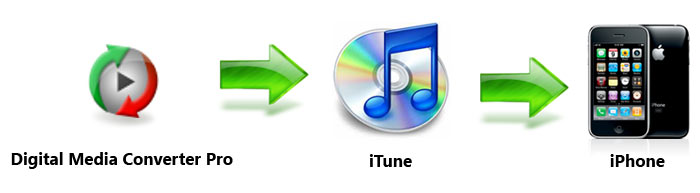
The following steps shows how to batch convert your video files to Apple iPad compatible MPEG-4 format. You can use similar steps to batch convert your songs to MP3 format.
Convert Your Favorite Videos to MPEG-4 in a few Simple Steps:
In Digital Media Converter Pro, open the File menu and click Add Files. Navigate to the folder containing your video files, and select one or more files to convert. On the Menu bar, click Format >> Select Device Profiles >> Apple iPad.
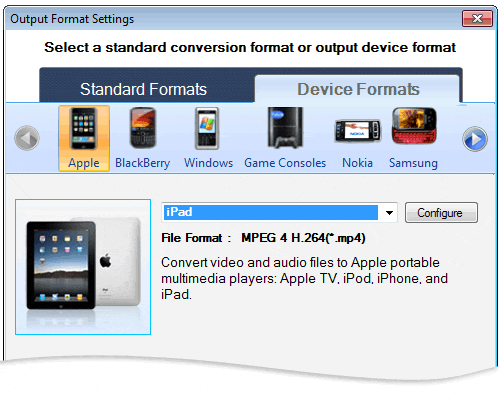
The Output Format properties are already set so that you get the best quality media on your iPad. However, you can click Configure to adjust these settings. After adjusting the output settings, click Start Conversion button to convert your media file into MPEG-4 format for your iPad.
If Apple iTunes is installed on your computer then Digital Media Converter Pro can help you organize the converted files into playlists in Apple iTunes. After conversion, a conversion summary dialog appears which includes a link Add converted music to iTunes. Click the link to connect to the iTunes installed on your PC.
Organize Converted Files in iTunes
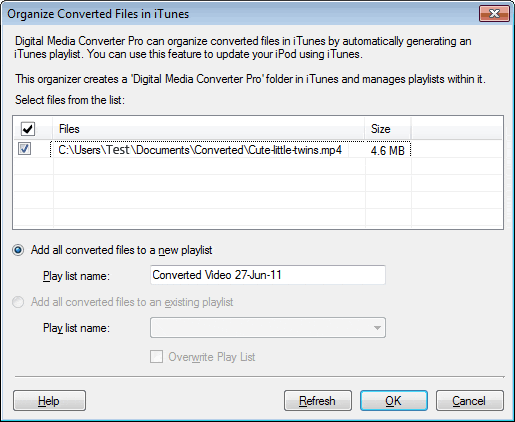
Decide whether you want to create a new playlist for your converted files or append them to an existing playlist. To create a new playlist, select the option Add all converted files to a new playlist and specify the name of the playlist. To modify an existing playlist, select the option Add all converted files to an existing playlist and then select the name of the playlist. Check the Overwrite the playlist box to clear the files already present in the selected playlist.
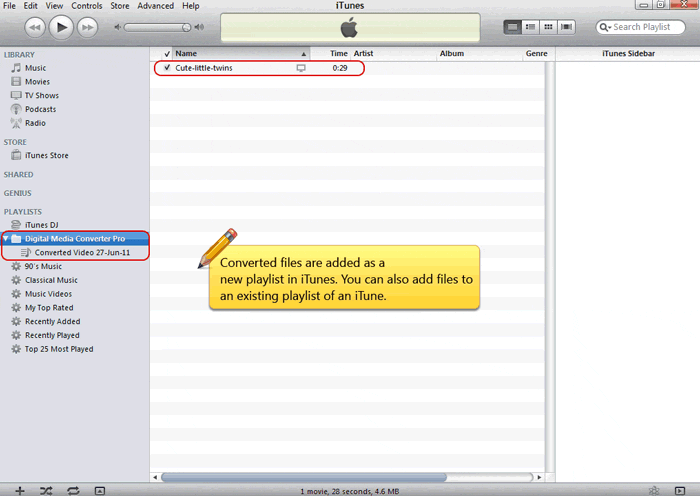
Connect your iPad to your computer so that iTunes can update it with the converted files. With Digital Media Converter Pro you can play all your music and video on your iPod with only a few mouse clicks and no trouble. Now start collecting your favorite videos and music and enjoy them anywhere, anytime.