Working With DVDs
When you look at the file structure of a video DVD, you'll see at least 2 directories, an "AUDIO_TS" folder and a "VIDEO_TS" folder (and possibly some other files/folders). VIDEO_TS folder contains VOB files that hold the actual video, audio, subtitles, and menus for the DVD. The video in a VOB file is compressed into in MPEG-2 format.
With Rip DVD Plus, you can convert these DVD files from a MPEG2 into any of the video and audio formats that Rip DVD Plus supports. VOBs can also be converted to work on an Apple iPod, Sony PlayStation Portable (PSP) and many other supported devices
Types of VOB files on DVDs
VOB with chapters: DVD authors often divide the content into chapters. The chapters can be individual episodes of a TV show, scenes in a movie, cut scenes, or trailers. By dividing the DVD into chapters, it becomes possible to create the navigation menus and let the viewer jump directly to a desired part of the DVD.
VOB files can contain multiple chapters. These chapters can be seen as chapter points in the VOB file using Rip DVD Plus. The software can either extract the chapters (so that each becomes a separate file) or convert the entire VOB file or the title set (all the chapters included in a Title-Set (Title 01, Title 02 etc.) into a single new file.
VOB without chapters: These VOB files are undivided—they contain only one video stream. It’s easy to recognize a chapter less VOB file while you use Rip DVD Plus. If the file does not contain chapters, only single chapter is shown as the entire video.
Scanning DVDs for Titles
When you add DVD, Rip DVD Plus scans the DVD files for titles and enumerates all the title set present in the DVD:
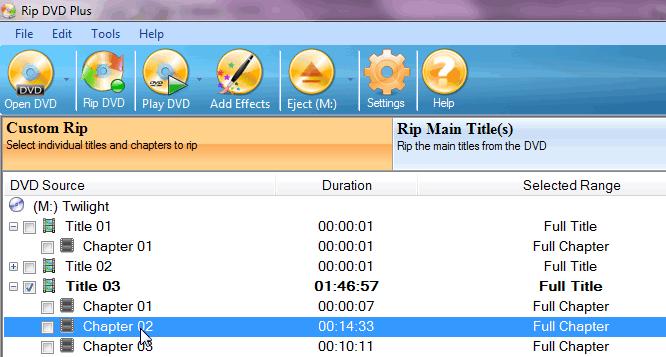
The window above tells you more than just, "The DVD has many video titles". Rip DVD Plus will allow you to select the different audio track, subtitle and viewing angle for each title or chapter.
Extracting Chapters
You can separate the chapters by selecting the individual chapters from different title sets using Custom rip mode which is a default mode when DVD is loaded. You can see the individual chapters and choose to include or exclude chapters from desired title set by checking or un-checking them. If you do not use select these chapters and instead just the title is selected then all the chapters will be converted as a single file and you will not be able to rip individual chapters in shown in the listing.
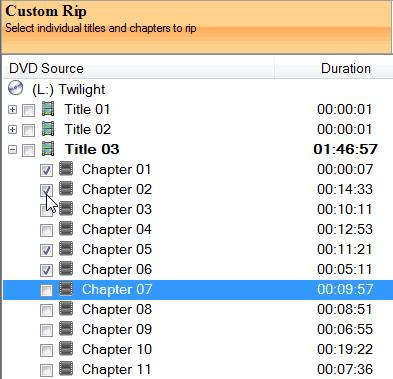
You can extract chapters only when Custom Rip option will be active.
Merging Functionality
You can merge multiple titles or chapters into a single file. This can be done by selecting the desired titles or chapters and then checking the Merge To Single File option given in Edit menu or by checking Merge into single file option as shown in the below image.
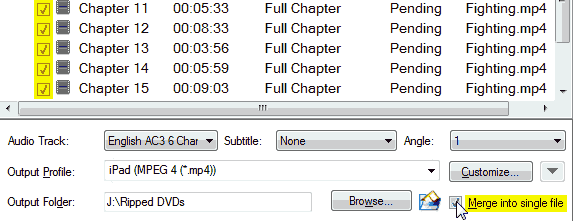
You can even split these individual chapter edit them using Add Effects tool from the main tool strip. You can merge chapters only when Custom Rip option will be active, but titles can be merged in other two modes also.
Rip DVD Plus makes it simple to not only play your DVD movies on your multimedia player, but also backup them on your PC.