DeskShare homepage Deutsch   Français    Español   Portuguese   
.
  Products  


Pages:
  
1.Index
2.Getting Started
3.Quick Start
4.Application Settings
5.Working with Devices
 
Adding a Monitoring Device
Selecting a Monitoring Device
Camera Settings
Manual Recording
Taking Photos Manually
Device Preview and Monitoring Control Bar
Enabling Motion or Noise Detection
Refreshing Device List
Changing Camera Properties
Changing Video Properties
TV Tuners
Scheduling a Device
Device Scheduling Options
Working with IP Cameras
 
Adding IP Camera
Searching for IP Camera Address
Editing IP Camera Settings
Removing IP Cameras
Controlling the Movement of an IP Camera
6.Auto Configuration Wizard
7.Motion/Noise Settings
8.Types of Alerts
9.Working with Periodically Activated Alerts
10.Remote Monitoring
11.Media Files
12.Keyboard Shortcuts
13.Event Logs
14.Resources
 
 
  Security Monitor Pro v3.04


Security Monitor Pro: Editing IP Camera Settings

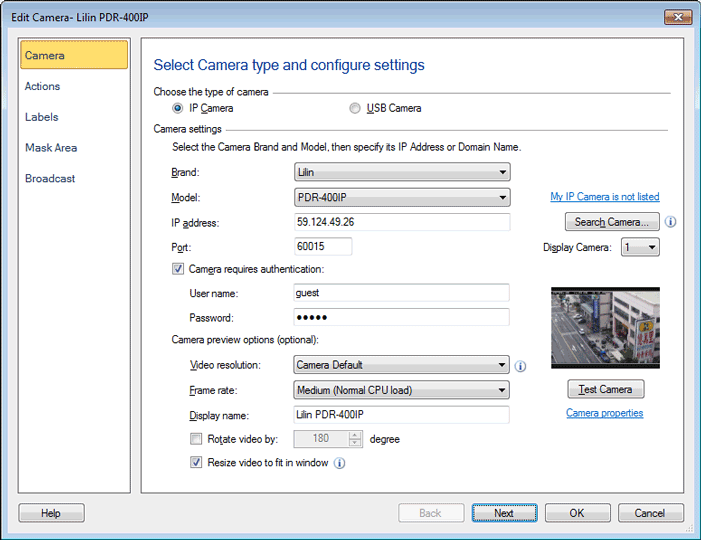
Editing IP Camera Settings

To edit the settings of an IP Camera:

  1. Select the camera by clicking on its Preview window.
  2. On the Tools menu, click Camera Monitoring Options.
  3. Select the IP Camera tab.
  4. After changing the settings, click OK.

Detailed camera settings such as video compression rates and flicker compensation can be set by clicking on the File menu and choosing Camera Settings.

Any locally attached camera or network IP camera can be edited from Tools > Application Settings > Camera Manager.

Copyright © DeskShare Incorporated. All rights reserved.