Make Your Own MP3 Files or Record Audio Playing on Your Computer
Have you ever thought about creating your own MP3 files or recording your Skype conversations? My Screen Recorder Pro includes an Audio Recorder that allows you to record sound from any input source or from any application running on your PC. The recording can be saved in MP3, WMA or WAV format. If you're a big fan of Internet radio, you probably have realized that there is no easy way to record it. With the Audio Recorder, easily record your favorite songs from a popular online radio station, an audio player or just about anything that can be played using your computer’s sound card!
My Screen Recorder Pro is commonly used to make video recordings of screen activities, but the option to record only audio can be very useful.
Advantages of recording audio using My Screen Recorder Pro
- Recording from a variety of audio sources: Record any audio you can play on your PC irrespective of its source. Create MP3 files from the sound played back from a computer CD drive, movies, games, audio tape player and VCR or DVD player.
- Internet Audio: Record audio playing on applications like RealPlayer, WinAmp, Media Player, or QuickTime. Select record from speakers to capture audio from a website, online radio or any digital music service.
- Make audio files using your microphone: Select record from microphone to capture your own voice narration using a microphone.
How to record audio from any source on your PC
To record audio without video, click Tools >> Audio Recorder.
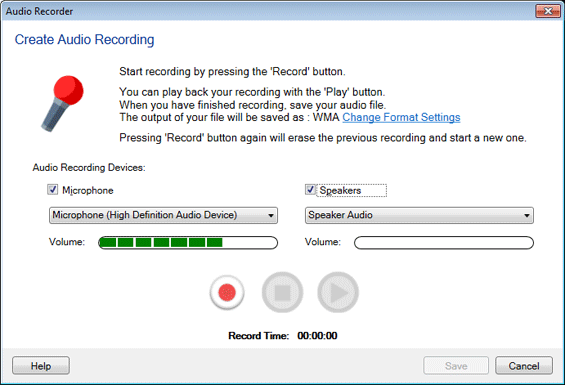
A microphone records your voice whereas speakers record sounds from your PC. You can connect either a USB or an analog microphone. An analog microphone connects to your PC with 3.5 mm jack into your sound card. A USB headset does not require a sound card. It connects to your computer through a USB port.
After connecting your audio recording devices, choose the output format as MP3, WMA, or WAV for your recorded files.
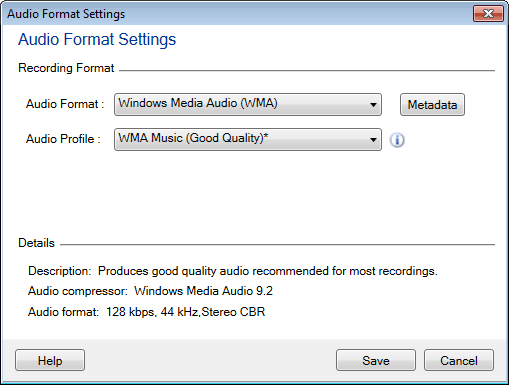
When you select an audio format, the best suitable profile is automatically chosen for you to produce optimum quality files. However, you can configure the audio settings by clicking the Custom button.
Once you have chosen the format, start recording by pressing the Record button.
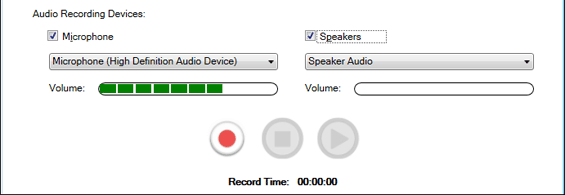
When you finish recording, click the Stop button. Click the Play button to listen to your recorded audio. Name your audio file and save it to a desired folder.
It is easy to record audio from any source and make your own MP3 files with My Screen Recorder Pro.