Distribute Screen Recordings as Video Executables
There are many considerations that you have to bear in mind while distributing your screen recordings. Whether the video file would retain its quality when it reaches the different viewers is an important concern. You certainly cannot depend on the media player and choice of resolution at the viewers’ end which may differ widely from computer to computer. <>My Screen Recorder Pro helps you to ensure clarity, more control over the viewing experience and effective presentation whenever your screen recordings are played back. It has a Generate Executable wizard that packs your AVI screen recordings in a built-in player. Let’s see why making a self-playing screen recording or an executable can greatly enhance the experience of your viewing audience.
Advantages For Your Viewer
- Built-In Video Player: The executable is played using a pre-loaded player so your viewers do not need to have a player installed on their PC.
- Original Dimensions Preserved: You can be sure that the quality of your screen recording is maintained since it is played in its original dimensions. There is no distortion whenever the video is played back.
- Play Individual Video Chapters: If an executable is made by combining several screen recordings, the player lists them as separate chapters. A viewer can play any of them in any order, instead of playing the entire executable file all at once and in sequence.
Advantages to You
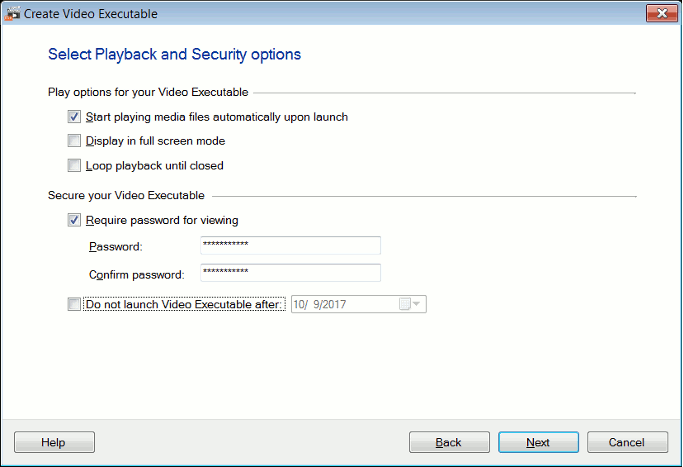
- Customize the Player: You can select the way the player runs your recordings. For instance, you can have the recording Continuously replay (loop).
- Combine Multiple Recordings Into One Executable: The Generate Executables wizard lets you join any number of screen recordings into a single executable.
- Compression: The files that make the executable are compressed by default by the Generate Executable wizard. The resulting executable is smaller in size.
- Password Protection: If you want only selected people to view the executable, you can set a password for it. Only the people who know the password to will be able to play the executable.
- Distribution becomes very easy because the executable can be placed on the DVD or sent via e-mail.
To make an executable from your screen recordings using My Screen Recorder Pro, follow the procedure given below:
- On the Tools menu, select Make Video Executable.
- Click Next on the welcome screen of the Create Executable Wizard.
- Click Add to include the files you want in the executable. You can specify the output folder by clicking on Browse.
- Use the Remove, Move Up and Move Down button to arrange files in the list.
- If one or more files are selected in the file list of My Screen Recorder Pro when you start the Wizard, they are automatically included and shown in the list of files. Click Next.
- Customize the player used to run the executable by selecting/deselecting the Select Options. Click Next.
- You can also add expiry date to video executables by selecting date from Do not launch Video Executable after option.
- Use Default or Custom icon which appears for your Video Executables. To display an image before video executable player is launched, Select Include splash screen option.
- Click Next to start generating the executable.
- The Output filename box shows both the executable file's name and the path where it is saved.
- Click Finish after the process of making an executable is complete. You can choose to Run Executable or Open Containing Folder, either of which lets you test your newly-created file.
Now that the executable is generated, you can use any CD or DVD burning program to copy the newly-created executable on to a disk for distributing.